Shopify Thank You Page: What to Show for Pickup & Delivery

Explore with AI
Get AI-powered insights from this article
A customer hits "Place order" on your Shopify store. The card gets charged. The cart empties. And the thank you page that loads says, more or less, "Thanks for your order." Nothing else. No date. No slot. No location.
For a local delivery or pickup shop, that quiet moment is where doubt sneaks in. Did the right time slot save? Is the order arriving Friday or Saturday? Is "morning" a window, or just a wish? If the page doesn't answer those questions, the customer's next move is to email your team or call the shop.
The Five-Element Shopify Thank You Page
A thank you page that does its job for local delivery and pickup stores answers five questions before the customer asks them.
- Whether they chose pickup or delivery, and at which location
- The date they picked
- The time slot they picked
- A way to change the slot without emailing your team
- What happens next: pickup instructions, prep time, or delivery notes
The framework above is for the page itself. But in real merchant chats, that page is one of three things the customer sees after checkout. There's the Thank You page they land on. There's the order confirmation email Shopify fires off a minute later. And there's the pickup-ready or delivery-dispatched email that goes out on fulfillment day. This guide covers all three, because if any of them goes quiet, the customer asks your team.
Why the Shopify thank you page matters for pickup and delivery stores
The thank you page gets more attention than almost any other screen on your store. The customer just made a decision. They just spent money. They're still in the tab, still leaning forward. That's a rare moment for any retailer.
For local delivery and pickup, the moment carries more weight than it does for a shipped-everywhere brand. The customer hasn't ordered a thing that will turn up when it turns up. They've booked a specific slot of their week. A wedding bouquet for Sunday morning. A birthday cake for Saturday at 11. A meal kit for Friday night. They need to see that exact slot, written back to them on the screen, before they'll close the tab.
The default Shopify thank you page doesn't show any of it. You get the order number, the items, the payment method, and the shipping address. There's no pickup or delivery date. No time slot. No location either. For a florist, baker, or any local shop, that's most of the order.
Here's the gap, side by side. Per Shopify's own customization options for the Thank You and Order Status pages, the native page covers the basics but stops short of customer-selected scheduling. Shopify itself points merchants to apps for that.
| Default Shopify Thank You / Order Status page | With Bird Pickup & Delivery | |
|---|---|---|
| Method confirmation | Generic shipping address or store address | "Pickup at [location name]" or "Delivery to [address]" |
| Customer-selected delivery or pickup date | Not shown (only store-wide processing time) | Full date written out |
| Customer-selected time slot | Not supported natively at checkout | Time window displayed |
| Self-service slot edit | Not available | "Update" link, respects your active rules |
| Pickup-ready email | Not native for local pickup | Email globally; SMS in US and Canada |
| Out-for-delivery email | Not native for local delivery | Automatic |
| Buy again / Continue shopping | Native ✓ | Inherited ✓ |
| Self-serve returns | Native ✓ | Inherited ✓ |
How do you show delivery date and time on the Shopify thank you page?
You add the Bird Order Details block to your Shopify thank you page from the standard Shopify checkout customization screen. The block reads whatever date, time, and method the customer picked at checkout, then puts it on the page. No code. No theme edits. No developer.
Once the block is live, the same one drops onto the order status page (the link customers come back to days later). Setup steps live here: How to Display Delivery Date and Time on Thank You and Order Status Pages.
The picker that captures the date at checkout is the other half of this flow. We covered it in Shopify Delivery Date Picker: Everything You Need to Know.
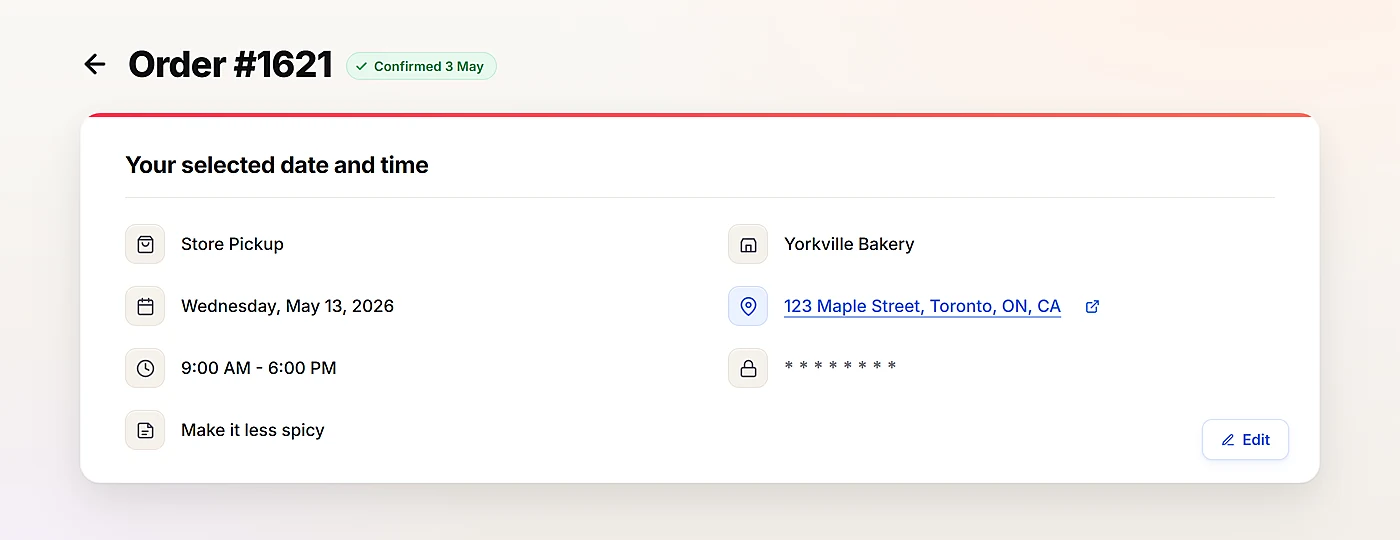
The five elements your Shopify thank you page should show
1. The chosen method (pickup or delivery)
A line that says "Pickup at Yorkville Bakery" or "Delivery to 123 Maple Street" is the first signal of trust. For stores running more than one location, this gets more important, not less. The customer who picked downtown pickup needs to see "downtown" on the screen, so nobody drives to your suburban shop on Saturday morning by mistake. The address opens in Google Maps when tapped, so the customer doesn't have to copy-paste anything to navigate.
2. The confirmed date
Not "Order will arrive in 3-5 business days." A real, written-out date. "Friday, May 15." For perishables (flowers, cakes, prepared meals, fresh produce), the date basically is the order. A wedding bouquet on Sunday is a different product than the same bouquet on Tuesday.
3. The confirmed time slot
The window they booked. "Between 2 PM and 4 PM." "9:00 AM pickup." If your store uses time slots, that slot is the customer's appointment. Treating it like a small detail buried inside an email is how mix-ups happen.
4. A self-service edit link
Plans change. The babysitter cancels, the meeting runs long, the customer who booked Friday at 3 PM realizes they need Friday at 6 PM. Without a self-edit link, their next step is to email you. With one, they click "Update," see the slots that are still actually available, and pick a new one. Bird applies the same rules at the edit step as at checkout: lead times, order limits, and blockout dates. You don't have to police anything.
5. What happens next
The closing line is the operational one. For pickup: "Bring this order ID. Park out front. Call when you arrive." For delivery: "We'll text you when the driver leaves the shop." For wedding flowers: "Our team starts arrangements 24 hours before delivery."
For stores using Bird's pickup security code feature, the block also surfaces a verification code (with a matching QR underneath) that the customer shows at the counter, so your team can confirm the person standing in front of them is the one who placed the order. And if you've enabled order notes at checkout, the customer's own note ("make it less spicy," "leave at the back door") flows back onto the page so they can see you actually captured what they typed.
Most stores skip this last part because it doesn't feel like a feature. It's the most-asked question after "where is my order?"
What about your Shopify order status page?
The order status page is the URL customers come back to days after checkout, when they want to re-check the slot. The same Bird Order Details block goes here, with the same content: method, date, time, edit link, what's coming next. For wedding orders, custom cakes, or anything booked weeks ahead, this page is actually the more important of the two. Nobody returns to the thank you page three weeks later. They come back here.
What does your Shopify order confirmation email need to show?
The order confirmation email is the second screen the customer sees after checkout. It hits the inbox about a minute after they leave your site. By default, it shows the order summary, payment, and shipping address. Same gap as the thank you page. No date, no slot, no method.
If you ask our support team what new merchants ask in their first week with Bird, the answer is almost always some version of: "How do I add the pickup day and time from Bird to my Shopify order confirmation email?" That question outpaces nearly everything else post-install. The reason makes sense. The customer who closes the tab without reading the thank you page still opens the email. If the email is silent on the slot, your inbox fills up with "wait, what time did I book again?"
The fix is a one-time edit inside Bird Settings → Notifications. Open the order confirmation email template, find the Order Summary section, and paste the Bird snippet just above the order summary table. After that, every confirmation email pulls in delivery method, date, time, day of week, and pickup location automatically. Snippet guide: How to Add Date and Time to Order Confirmation Emails.
When the order is ready: pickup-ready emails and SMS notifications for Shopify stores
The third screen is the notification that fires on the day you fulfill the order. For pickup, Bird sends a "Ready for Pickup" email when you mark the order ready. For local delivery, the same flow fires when you mark the order dispatched. In merchant chats, our team hears this same ask in every language: English, French, German, and a few more. Different countries, same request.
Bird sends it as a built-in email notification. From the Bird app's Orders view, you filter to today's pickup orders, mark them as Ready, and the email fires for every selected order at once. For merchants in the US and Canada, the same notification is also available as SMS, turned on inside Bird Settings → SMS Notification. Outside North America, email is the default for now, and SMS is rolling out region by region.
If you want the email to look like your store sent it, the email branding setup lets you send from your own domain and sender name. The customer just sees a clean note from your shop.
How can customers edit their delivery date and time on the Shopify thank you page?
Once the Bird Order Details block is on your thank you and order status pages, the post-order editing feature is one toggle away. Go to Bird Settings → Order Management and flip on "Allow user to edit date and time." An Update link then shows up on both pages. The customer opens an "Edit your selection" popup, sees only the slots still valid under your rules, and confirms. Bird sends the updated confirmation. Your inbox stays quiet.
We went deeper into the edit-after-checkout flow in Letting Customers Edit Orders After Checkout. If rescheduling emails are eating your team's time, that one's worth a read.
How does the Shopify thank you page work for florists, bakeries, and restaurants?
The block is the same for every store. What changes is why it matters.
For florists, the thank you page is the relief moment for a customer who ordered Mother's Day flowers four days early, and the order status page is where they come back hourly during peak weeks. See our florist's guide to delivery scheduling for Mother's Day and Valentine's playbooks, plus the broader florist Bird overview.
For bakeries, cake pickup is an appointment, full stop. The 11 AM Saturday slot needs to be on the customer's phone, or every Saturday cake order turns into a Friday-night text.
For restaurants and cafes, pickup time matters down to the quarter-hour. A 6:30 PM dinner that lands at 7:00 PM is a cold dinner.
FAQs
How do I add the Bird Order Details block to my Shopify thank you page?
From Shopify Settings → Checkout → Customize, open the Thank You page. Add the Bird Order Details app block to the Order Details section and save. The same flow installs it on the Order Status page. No code, no theme edits.
Can customers edit their delivery or pickup date after checkout?
Yes. Once the Bird Order Details block is installed and the "Allow user to edit date and time" toggle is on inside Bird Settings → Order Management, an Update link shows up on the thank you page and the order status page. Customers only see slots still valid under your active rules (preparation time, order limits, and blockout dates).
What if the customer tries to move their order to a slot that's no longer available?
They can't. The edit popup only shows slots that pass the same checks Bird applies at checkout. If a slot is full, blocked out, or outside lead time, it doesn't appear on the menu.
How do I add the delivery date and time to my Shopify order confirmation email?
Inside Bird Settings → Notifications, open the order confirmation email template, find the Order Summary section, and paste the Bird snippet right above it. Every confirmation email then pulls in delivery method, date, time, day of week, and pickup location automatically.
Does Bird send SMS notifications when an order is placed or ready for pickup?
In the United States and Canada, yes. Bird sends both email and SMS notifications when an order is placed and when it's marked ready for pickup or dispatched. Outside North America, the email notifications work globally, and SMS is rolling out by region.
The post-checkout moment is the most underused screen on a Shopify store
Most stores pour effort into the homepage, the product page, the cart, and the checkout. Then the customer lands on the thank you page and the screen goes quiet. For a local delivery or pickup store, the thank you page (along with the confirmation email and the ready-for-pickup notification) is where the customer is actively looking for proof that you understood the date, the slot, the location, and the method they chose.
The five-element thank you page isn't a redesign. It's one app block, set up once, that turns the quietest moment in your customer journey into the most useful one.
Bird is the pickup and delivery scheduling app trusted by 7,000+ Shopify merchants in 60+ countries. Try Bird free for 14 days →
Ready to streamline your pickup and delivery?
Start your 14-day free trial and see how Bird can transform your Shopify store.
Start Free Trial