EasyRoutes Delivery Dates on Shopify: Sync Slots to Routes
Explore with AI
Get AI-powered insights from this article
Bird decides what can be promised. EasyRoutes decides how to deliver it.
The whole mechanism in one line: Bird collects the delivery date and time slot at Shopify checkout, writes them onto the order, and EasyRoutes reads those values when it builds your routes. Bird holds the scheduling rules. EasyRoutes holds the road.
Skip that handoff and the optimizer solves the wrong problem. It will build you the shortest possible path through fifty stops, sequenced in an order nobody promised anybody.
Bird Pickup & Delivery, by BirdChime, is a Shopify app for scheduling store pickup, local delivery and shipping: delivery dates, time slots, delivery rates, order limits, delivery zones and route planning integrations. Trusted by 7,000+ Shopify merchants in 60+ countries.
The EasyRoutes handoff checklist
Five things have to line up before your routes respect the times your customers picked.
- Collect the date. A customer picks a date and window at checkout in Bird.
- Write it to the order. Bird stores it as a
Delivery Dateorder attribute.- Show the columns. Enable them and EasyRoutes surfaces those values to sort, filter and route by.
- Let the optimizer constrain. Stops get sequenced to land inside their windows.
- Mind the undated. Orders without a date still route, just without a promise attached.
Step three is the one that quietly breaks setups, and step five is the one that surprises people.
Who owns what when Bird and EasyRoutes share a Shopify order?
Bird is not a route optimization app, and it does not pretend to be. It schedules. EasyRoutes is not a scheduling app, and it says so in its own documentation: cutoffs, lead times and blockout dates live in your date picker, and EasyRoutes reads the resulting delivery date and window.
That sentence is the whole integration.
| Piece | What it owns |
|---|---|
| Bird Pickup & Delivery | The date, the time window, the fulfillment method, and every rule that decides which dates a customer is even allowed to pick |
| Shopify | The order, and the attribute the date is stored on |
| EasyRoutes | The route: stop sequence, driver assignment, ETAs, tracking, proof of delivery |
The Delivery Date attribute | The handoff between them |
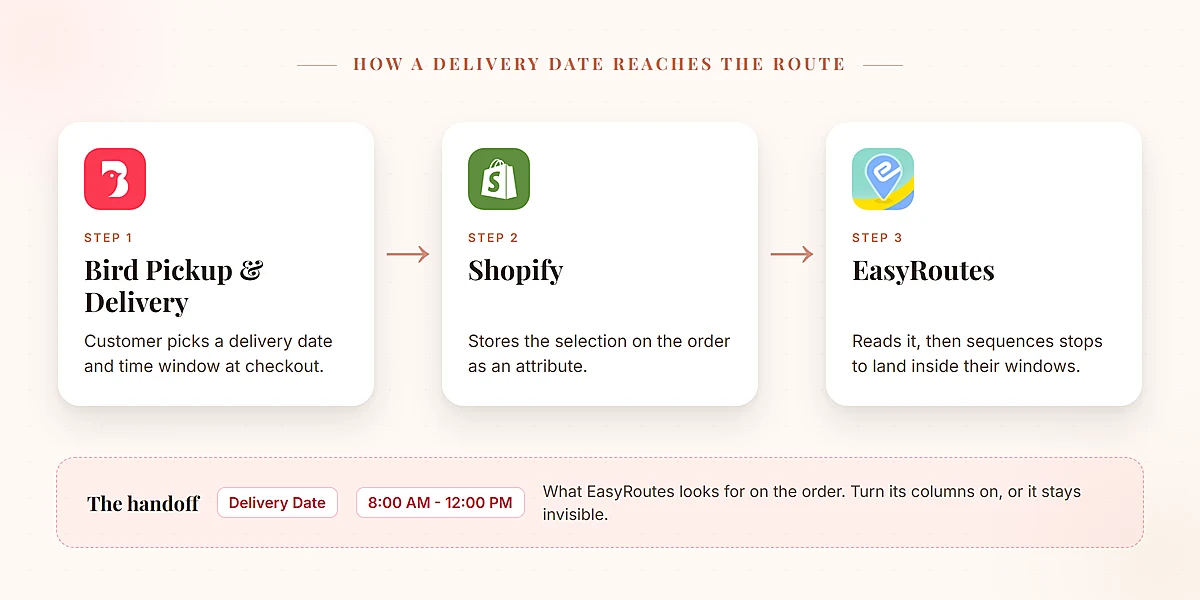
Almost everything that goes wrong is that handoff not landing.
How does EasyRoutes read a delivery date from a Shopify order?
It reads the order, not the app. EasyRoutes gets delivery dates from Shopify itself: it picks up the date and time window a date picker writes onto each order, most often as order attributes, and also from order tags. That is why it works with so many scheduling apps.
It recognizes a fixed set of attribute names:
| Attribute name | Notes |
|---|---|
Delivery Date | What Bird writes |
Delivery-Date | Hyphenated variant |
Order Due Date | Used by some apps |
Selected Date | Used by some apps |
Supertime Delivery Date | App-specific |
Bird writes the first one, which is why it appears on EasyRoutes' own list of supported delivery date apps rather than needing a workaround. For custom setups it falls back to automation rules that parse whatever attribute you have, and recommends YYYY-MM-DD. Some apps write the date to a line item instead of the order, handled separately through its item properties setting. Bird does not, so that is one less thing to configure.
Time windows come across in the same pass, in a shape like 8:00 AM - 12:00 PM. Those come from the time slots you configured in Bird, so the granularity of your routes is decided long before a driver gets in a van. Two-hour windows give the optimizer room to work. Thirty-minute windows do not.
Connecting the apps directly from Bird Settings then Integrations, where EasyRoutes Local Delivery sits in the list, is the documented setup. Bird's EasyRoutes setup guide covers the connection and the test order that confirms it.
Why are the Delivery Date and Time Window columns empty in EasyRoutes?
Because those two columns have to be switched on before EasyRoutes will show them, and nothing prompts you to do it.
On the EasyRoutes Orders page, Configure table columns sits under your active Route Options. Delivery Date and Time Window live in there. Until they are enabled you cannot sort, filter or build a route by them, even though the data is on the order the whole time.
This is a common reason a working integration looks broken. Merchants see no dates and conclude the sync failed. Turn the columns on and a week of dates appears at once, after which the daily loop is four clicks: filter to tomorrow, select, build the route.
If you would rather filter inside Shopify admin, Bird's order tagging writes the delivery date onto the order as a tag, giving you a Tagged with filter. EasyRoutes reads tags as well as attributes, so tagging helps both places at once.
EasyRoutes delivery dates not showing? Four things to check
Work through these in order. The break is almost always at one point.
- Confirm Bird collected a date. Open the order in the Bird app. It should carry a delivery date, a time window and a fulfillment method. If it does not, the problem is in your widget or availability settings.
- Check the Shopify order for the attribute. Open that same order in Shopify admin and look for a
Delivery Dateattribute. That is the exact field EasyRoutes goes looking for. - Enable the columns in EasyRoutes. Configure table columns on the Orders page, then switch on Delivery Date and Time Window.
- Run one test order end to end. Pick a date at checkout and follow it through both apps. Two minutes of that beats an afternoon of guessing.
If the attribute is on the order and the columns are enabled, the core handoff is working. If something still looks wrong after that, check your Bird scheduling rules and your EasyRoutes route configuration next.
Which scheduling rules stay in Bird and never reach EasyRoutes?
All of them. The rules stay put; only their output travels. EasyRoutes receives a date and a window, not the reasoning that produced them:
- Preparation time and cutoffs. How long you need before an order goes out, and the hour after which today stops being an option. Our guide to Shopify delivery date cutoffs covers setting one that fits your day.
- Blockout dates. Public holidays, stock takes, the Monday you are closed.
- Order limits. Caps per day, slot, location and product. This is the one that protects the route: an optimizer given eighty stops for a two-van day will cheerfully hand you eighty stops for a two-van day.
- Delivery zones. Postal code, radius or driving distance rules that stop an out-of-area order being accepted at all.
Everything Bird refuses at checkout is a stop EasyRoutes never has to solve for. A florist who caps Valentine's Day at what the shop can genuinely arrange gets a hard day. A florist who does not gets a bad one. For a grocery or meal-kit shop running standing routes, that filtering is most of the value.
What does EasyRoutes do with Shopify orders that have no delivery date?
They still route. EasyRoutes optimizes undated orders for the shortest path instead of constraining them to a window, and it mixes dated and undated stops on the same route, sequencing the ones with windows to honor them while the rest fill the gaps.
That is useful, and it is also how a broken setup hides. Your routes keep building. Nothing errors. The dates just are not doing anything. If you suspect that, run the four checks above, or use Bird's order export and reports to see date, time and method per order in a spreadsheet.
How do route limits and stop priorities work with scheduled time slots?
The optimizer sequences stops to arrive inside each window while minimizing driving time, accounting for start and end locations, service times and speed factors. You can cap a route by maximum stops, items, duration or weight, balance stops across routes, or optimize for the fewest routes that respect your limits.
Limits and priorities interact in a way worth knowing before a busy day. Stops can be marked High or Low priority, individually or in bulk, and when a route hits a limit the High ones are kept first and the Low ones dropped first. So a cake for a 2 PM party and a case of dog food that could go tomorrow are not equal, and you can say so.
Same-day changes are handled by re-optimizing. A change to the delivery date itself happens back in Bird, where it can be edited after checkout by you or the customer, then flows to the order attribute as the original did. Dispatch, tracking and proof of delivery stay on the EasyRoutes side, alongside Bird's other last mile delivery connections.
Key takeaways
- Bird schedules, EasyRoutes routes. Bird owns the date, window and method. EasyRoutes owns the sequence, driver and tracking.
- One attribute connects them:
Delivery Date, written onto the Shopify order. EasyRoutes reads the order, not the app. - The columns have to be enabled. Switch on Delivery Date and Time Window under Configure table columns, or the data stays invisible.
- Undated orders route silently. A broken handoff produces working routes rather than an error.
- Cutoffs, prep time, blockout dates, limits and zones never leave Bird. The route only sees the result.
- Time slot width is a routing decision. Narrow windows constrain the optimizer more than merchants expect.
Ready to give your routes something real to plan around? Try Bird free for 14 days.
FAQs
Does EasyRoutes need a delivery date app to work on Shopify?
No, but without one it can only optimize for distance. Shopify does not collect a delivery date or time window at checkout on its own, and EasyRoutes reads whatever is already on the order. A scheduling app puts it there.
How does Bird send delivery dates to EasyRoutes?
Bird writes the customer's selection onto the Shopify order as a Delivery Date attribute, with the time window alongside it, and EasyRoutes parses both. Bird is on EasyRoutes' supported apps list, so the name matches without custom mapping.
Why is the Delivery Date column empty in EasyRoutes?
Because those columns have to be enabled before they show anything. Open Configure table columns on the Orders page, under your active Route Options, and switch both on. If they are on and still empty, check the Shopify order carries a Delivery Date attribute.
Do my cutoff times and blockout dates carry over into EasyRoutes?
No, and they are not meant to. Preparation times, cutoffs, blockout dates, order limits and delivery zones live in Bird and govern what a customer can select. EasyRoutes receives only the date and window that survived those rules.
Can EasyRoutes route store pickup orders from Bird?
Pickup orders do not need routing, since the customer comes to you. Bird schedules pickup, local delivery and shipping; the delivery orders are the ones useful to EasyRoutes. Pickup stays in Bird for your counter team.
What if a customer changes their delivery date after ordering?
Change it in Bird, or let the customer reschedule themselves. The updated date is written back to the order, so the next route you build or re-optimize reflects it. Changing a stop inside a route does not change the underlying order.
Can I use time windows narrower than an hour?
You can, and on a busy day you probably should not. Every window is a constraint the optimizer must satisfy, and tight ones on scattered addresses force longer routes or more of them.
EasyRoutes is very good at sequencing stops, and it can only sequence around what something else collected.
Try Bird Pickup & Delivery free for 14 days, or see how the EasyRoutes integration fits your setup. Trusted by 7,000+ Shopify merchants in 60+ countries.
Ready to streamline your pickup and delivery?
Start your 14-day free trial and see how Bird can transform your Shopify store.
Start Free Trial